


Ai presentation maker · Choose a starter offer that can finish the handoff
A AI presentation maker can be helpful for a school report, a small project update, or a first run at a sales deck. The entry-level plan has to cover the entire workflow you need. A tool might give you enough slides for a first draft but limit the export or charge for more generation after you revise. Start with the file and audience you need to serve.
Gamma's pricing page describes its entry-level plan and available export types. Its own plan details are where to confirm the current limits, and a downloaded test shows what the PowerPoint contains. Orlino presents an AI Presentation Maker with an editable PowerPoint workflow and describes its broader tools as free to start. Confirm what the presentation takes from your account and whether a file can be downloaded in your planned workflow. Public product descriptions are a starting point for comparison, while the account and the exported file establish the actual result. (Gamma pricing and export options) (Gamma PowerPoint export help) (Gamma plan limits and credit resets) (Orlino tools overview)
List the smallest deck that would complete your task. For a team update, that could be a title or decision slide, two evidence slides, a risk slide, and a next-step slide. If you need twenty generated slides but the starter offer covers one short deck, decide whether assembling two smaller pieces in PowerPoint is feasible. Test the second export before assuming that both decks can be generated at no additional cost.

Separate the limits you encounter
A per-generation slide limit describes how much the tool will create in one run. A project limit can describe how many slides a deck can hold. A credit allowance determines how many generation and revision actions you can complete. A slide limit and a credit balance answer different questions. Find out which one applies as you add slides, regenerate, or ask for another layout.
Try a short outline and watch what the tool does with it. Can you add sections manually after the AI run? Is another slide charged as a separate generation? Is an image generated per slide, and does it have its own usage allowance? Write down the account information shown before and after a simple test so you can estimate the effort a real job would take.
If you have a class or work deadline, check whether the starter allowance refreshes. A one-time batch is useful for a single presentation. A monthly workload requires a more predictable arrangement. Ask whether the same process will work again next week, or whether the deck becomes a one-off drafting tool you finish elsewhere. For a realistic export trial, turn a short set of meeting notes into PowerPoint and use one approved metric and one open decision in your sample.

Build a five-slide export trial
Give each candidate the same input and ask for a five-slide deck. Include a headline over text, a slide with a shape or diagram, a numerical comparison, a speaker note, and an image with a caption. This small test touches several common things that can break when a presentation moves from the browser to PowerPoint.
Example outline. Create five slides for a team update on a hypothetical reading club. Include the purpose, participation counts, a simple two-option comparison, a problem that needs a decision, and the proposed next step. Give the numbers directly in the input. Put one short note on the last slide.
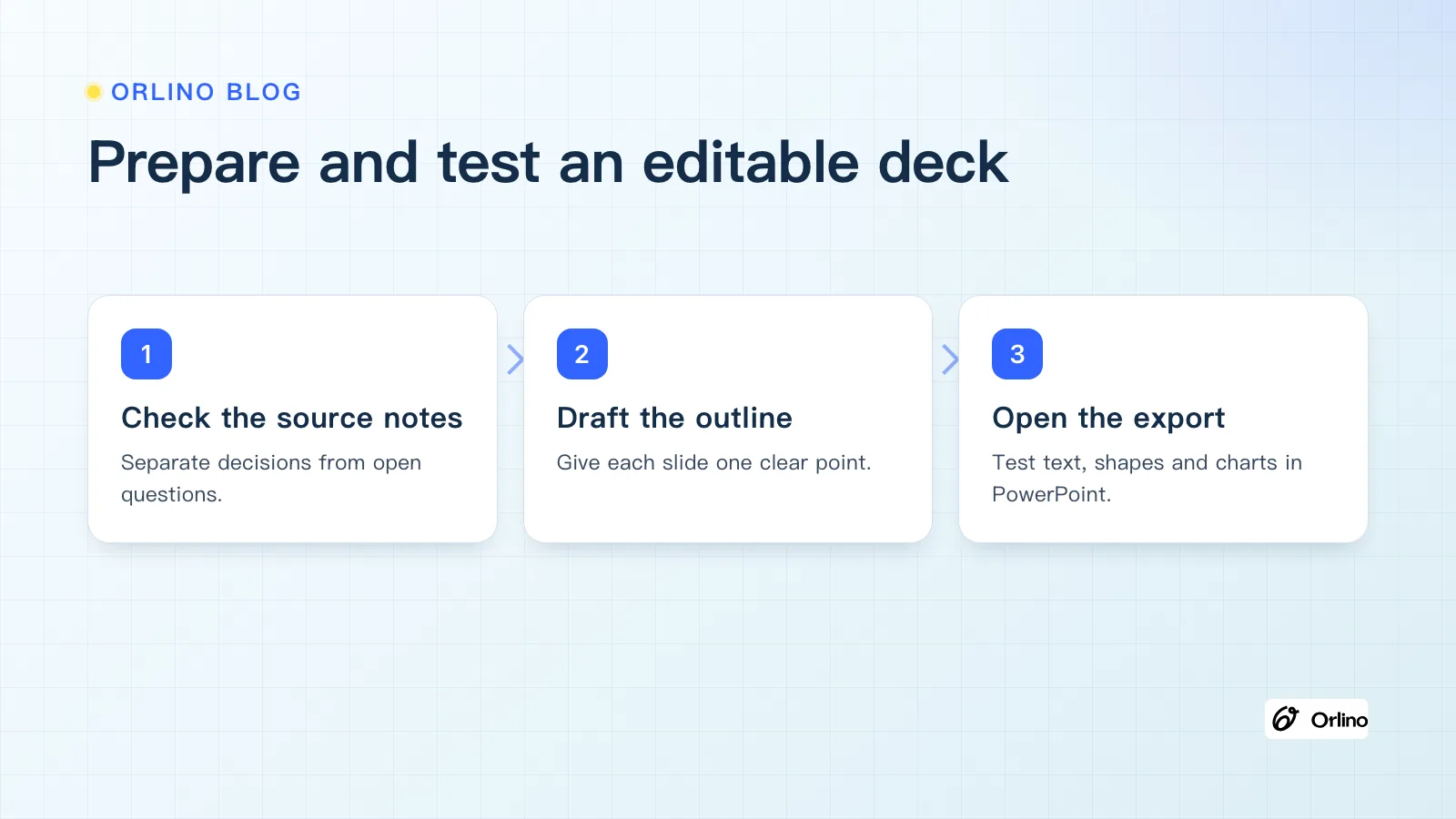
Download the slide file before customizing every slide. In PowerPoint, check what happens when you select text, move a shape, or change a figure. Review the image crop and whether the caption is separate. If the full slide behaves as one image, it can still work as a static handout but will be hard to update or adapt to a template.
Check for branding in the file itself, including the first and last slides. A provider badge may appear in the download even if you did not notice it in the editing experience. Decide whether that is acceptable for your audience. Verify official plan information if you need to understand whether removing the badge or enabling a feature comes at a charge.
Compare the real cost of completing the deck
Use a simple page or spreadsheet with one row per candidate. Record account type, number of generated slides, remaining allowance after one revision, PowerPoint export availability, and which slide objects remained editable. Add a note about manual cleanup, such as redoing a chart or fixing line breaks. Record the day you checked so the comparison can be refreshed when the plan changes.
If the no-cost option produces a usable five-slide introduction, it may be all you need. A starter offer that forces a manual rebuild can still help with planning, but its value belongs at the outline stage. When the format and template are important, compare the time to fix formatting with the time to prepare the slides yourself from the approved outline.
Use the same test on the actual account, region, and app combination you intend to use. Some features may require sign-in or may behave differently in a school or work account. Whatever the offer says, finish the small test end to end before you trust it with a deadline.
Compare Gamma and Orlino at each stage
Gamma's entry-level plan documentation describes generating up to ten slides in one prompt and adding more manually. It also says starter AI credits do not automatically refresh. Its export guidance explains how to download a PowerPoint and how provider branding can depend on plan status. Those are useful facts when you need to know whether the five-slide test fits before you start. Check the current plan pages and your workspace for any changes.
Orlino AI Presentation Maker emphasizes going from notes or a short brief to a PowerPoint file you can open and edit. That makes the file-based test particularly relevant. Verify your available allowance and try changing the text and one other object after export. Keep the current results from the tool separately from the provider's general description.
The important difference for this comparison is how each path gets you to a usable file before paying. If you are planning a single club presentation, a starter allocation may be enough. If you regularly regenerate decks and need a fresh first draft every week, a nonrefreshing allocation may change the choice. A limit on the initial run can be manageable if your template accommodates manually added slides. A limit at export is harder to work around if your reviewer needs the actual PowerPoint file.
Build an acceptance check around a deadline
Say your team needs a deck tomorrow. You can act on only four requirements: five slides, an editable decision statement, a chart you can correct, and permission to share the file as planned. Start with these checks before spending time on a theme. Generate the shortest complete version, download it, and change the title and chart value. Take the same steps in the second candidate so you know how much time each requires.
Write down the result at the acceptance stage. If the chart has to be rebuilt in PowerPoint, estimate that work before continuing with the rest. If the file has a visible badge, ask whether the audience accepts it. If the five slides already have usable objects, refine the deck in your destination app and save the generator credits for new content. This turns a broad “what each starter plan includes?” question into a short workflow test. If your team plans to reuse the deck, compare presentation makers for editable PowerPoint files to check which slide elements will remain editable.
Keep a downloadable fallback for the audience
A PowerPoint handoff is the primary check, but a stable reading copy can help when attendees cannot use the desktop file. Ask whether PDF is an acceptable second format and see which output preserves spacing, fonts, and page order. Take the snapshot only after approving the editable file, so the two versions match. If you need to fix a figure later, update the PowerPoint and regenerate the reading copy from that same source. This avoids treating a browser preview as a second, competing version of the slides.
Frequently asked questions
Can I make a deck before paying and download it as PowerPoint?
Some tools advertise PowerPoint export on a entry-level plan. Verify it in the current account and download a sample file to check the actual contents.
What is the difference between a slide limit and credits?
A slide limit controls the size of a generation or project. Credits measure particular generation or editing actions under the provider's plan.
Do exported slides always remain editable?
Editability depends on the exporter and the slide elements. Open the file and try changing the specific text, charts, or shapes you need to maintain.
Keep reading
Use AI to Turn Meeting Notes Into an Editable PowerPoint
Ai powerpoint generator · Turn meeting notes into an editable PowerPoint deck with an outline, source checks, and a quick test of the exported slide objects.
Read article AI Presentation MakerBest AI Presentation Makers for Editable PowerPoint Decks
Best ai presentation maker · Choose an AI presentation maker for editable PowerPoint decks by checking text, data, theme compatibility, and collaboration.
Read article