


Ai powerpoint generator · Decide what the deck is for
A deck based on meeting notes has a different job from the notes themselves. A meeting record preserves discussion. A deck helps an audience understand a result, make a decision, or take an action. Choose the purpose before you ask an AI PowerPoint generator to create slides, so the output can emphasize what matters to the next audience.
Suppose you ran a meeting about a pilot project. Your notes list enrollment, recurring issues, a proposed change, and a decision about the next launch. A leadership update may need four slides: the decision, the evidence, the remaining risk, and the next owner and date. A working session with the project team might need the full backlog, open questions, and a separate appendix.
Write the audience and objective at the top of the input. “Prepare a six-minute update for managers who already know the pilot. Get approval to extend the trial through May” provides more direction than “Summarize these notes as a deck.” If approval was not yet requested, state that openly so the tool does not convert discussion into a confirmed decision.

Clean the source notes before generating
Keep the original notes. Make a separate source packet with the decisions, evidence, actions, and uncertainties you want to use. Give each metric its time period and unit. Put each action on its own line with an owner and deadline when confirmed. Mark unassigned actions or missing dates instead of asking the model to fill them.
Remove side comments and sensitive details that do not belong in the presentation. Check that the final packet still contains enough information to support the main recommendation. Notes that say “the average improved” need a baseline, comparison, and measurement definition before they can become a meaningful chart.
Example source packet. Twelve people joined the April pilot. Nine completed both sessions. Two reported login issues. The team agreed to revise the setup guide. The pilot extension is proposed, pending manager approval. The deadline for the guide is still open.
Nine out of twelve is a completion count and can be expressed as a proportion, assuming the denominator is the twelve participants. It does not tell you whether the new guide worked or why people stopped. Keeping that distinction visible prevents an attractive slide from telling a story that the notes cannot support. If you still need a generator, compare slide limits and PowerPoint export with a small deck before loading your complete notes.
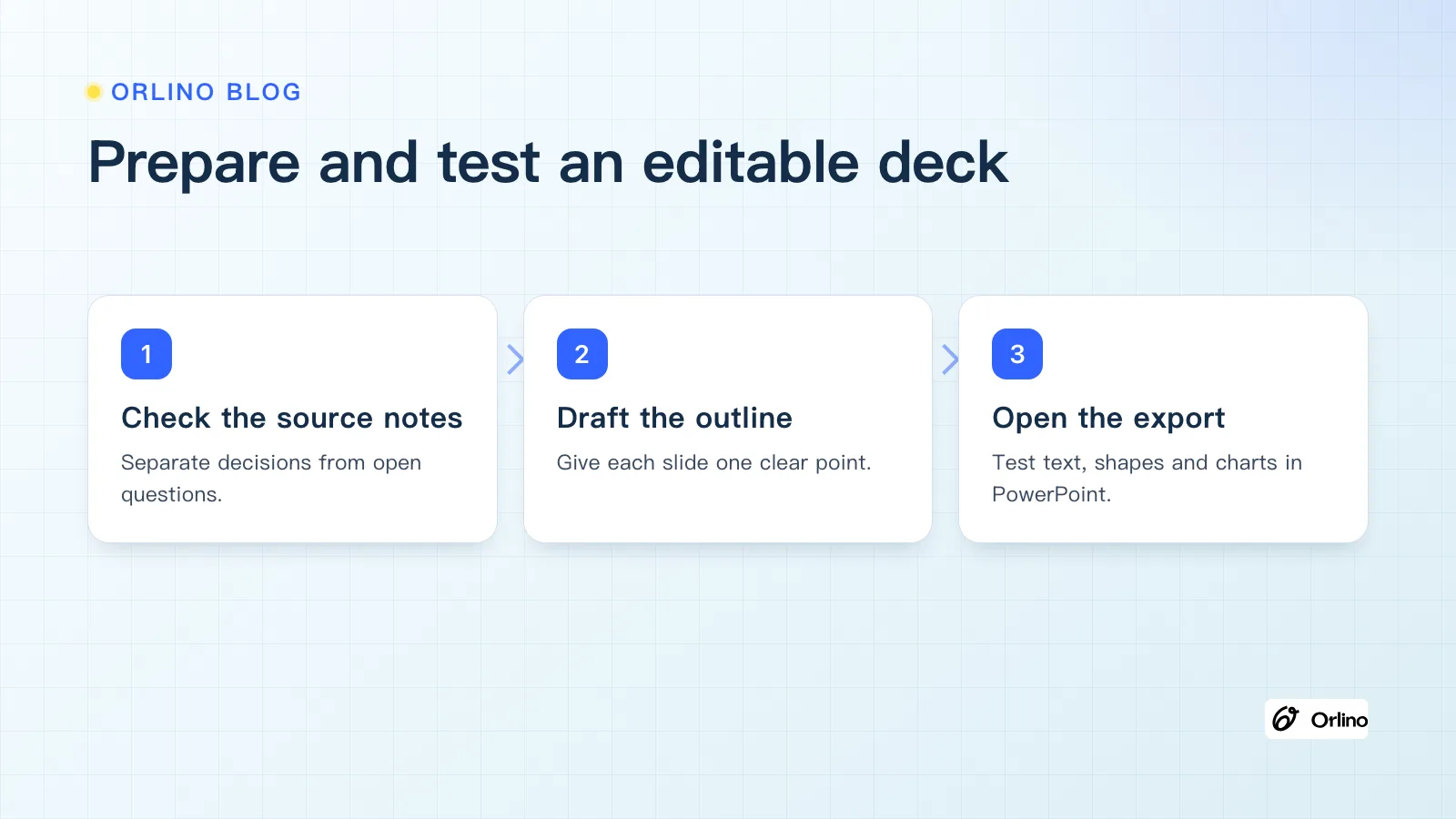
Request an outline with one claim per slide
Ask for a slide list with the headline, source facts, and visual approach for each slide. Treat the headlines as the first draft of the story. Someone scanning only those lines should be able to tell what the team knows, what it wants, and which action comes next.
Draft five slides for a six-minute manager update using only the packet above. Lead with the decision we need. Put one main claim on each slide. Use a simple count graphic for pilot participation and label proposed actions as proposed. Add source facts to speaker notes. Flag missing values or dates with a clear placeholder.
Review the outline before asking for a deck. Move detailed discussion to speaker notes or an appendix. Keep important uncertainties on the slide where they matter. If the tool invents an April comparison or assigns the setup guide to someone, remove that part and reinforce the boundary in the generation prompt.

Generate a deck you can edit
Select a presentation workflow that can give you a PowerPoint file if that is the required handoff. Orlino's AI Presentation Maker describes presenting an editable PowerPoint deliverable from an idea or notes. Because export behavior can vary across tools and templates, open the actual file in the PowerPoint environment where your team will use it.
Select the headline and change one word. Edit a shape and pull one object away from a group. If there is a chart, try to change the sample data through its own editing controls. The test tells you whether the exported slide contains editable objects or a flattened image. Either can be useful for some purposes. A flattened mockup is a poor fit when a manager expects to update charts and text next week.
Check fonts, spacing, and line breaks. A file can look good in a browser preview and render differently in a desktop app. If your team uses a shared template, try moving a representative slide into that template. Fix the most important rendering issue before investing effort in every slide.
Audit the content before the deck leaves your hands
Compare each metric and quotation with the source packet. Check dates, units, labels, action owners, and audiences. Use a consistent treatment for open items. A slide that says “Launch date to be confirmed” is clearer than one that has an invented date or an unexplained blank.
Ask a colleague who did not attend the meeting to read the slides. Can they identify the decision and explain the reason in one sentence? Can they distinguish proposed next steps from approved ones? If they need you to explain the purpose of an entire slide, adjust the headline and reduce the amount of competing detail.
Save the source packet, final deck, and any linked assets in a shared folder your team can access. Include the date and a clear name. Keep a preview PDF if people will also need a stable reading copy. When you hand off the PowerPoint, say which slide or notes section contains the evidence and where owners should update it next time.
Walk through the five-slide pilot using real acceptance criteria
In the sample pilot, start with a headline that states the proposal. A useful first slide might say “Decide whether to extend the pilot through May.” Show the decision request explicitly. Save the number of participants for the evidence slide so that a reader knows why the numbers matter before seeing them.
On the second slide, show “9 of 12 participants completed both sessions.” Give the time period and count in the slide subtitle or chart label. If the model produces “75% adoption,” correct it. Completion in this group is a specific measurement. It does not establish adoption by the group or the wider organization. Move any details about how completion was measured into notes if the audience needs them.
The third slide can show the login issue. Keep the reported count distinct from its cause. “Two people reported login issues” is supported by the source. “Two accounts were misconfigured” is an inference and needs separate confirmation. Ask the model to add a question about where the problem occurred rather than inventing a technical explanation.
On slide four, explain the proposed change to the setup guide. The source says the team agreed to revise it. It does not give a deadline or an owner. Use “Owner and due date to confirm” if the purpose of the next discussion is assigning the work. Avoid introducing a name simply to make the action slide look complete.
Use the fifth slide to repeat the decision and list what would happen after approval. State which actions already have owners and which still need one. Before sharing, make one actual edit to the chart and one actual edit to the notes. Change the chart or its labels as a test, then restore the source value. This verifies the handoff without letting an invented number reach the final deck.
Ask a teammate to read the slide titles in sequence. If they infer that the pilot has already been extended, adjust the wording in the first and last slides. Accuracy includes the status implied by titles and not only the numbers introduced in the middle. For a document others will update, test AI presentation makers for editable PowerPoint handoff to check text, charts, notes, and theme compatibility.
Rehearse with the exported deck
Give the speaker the same downloaded file that the audience will receive. Ask them to run it in slide show mode, switch to Notes view, and describe the decision request without displaying the appendix. Rehearse the handoff from the evidence slide to the action slide. If it requires a missing explanation, add a speaker note and check it in the updated file. Time the sequence once. If the deck runs long, keep the evidence needed for the decision and remove background that the audience already knows.
Frequently asked questions
Can I generate a deck from raw meeting notes?
You can start with them. Clean the source first if the notes contain sensitive comments, conflicting facts, or proposals that could be mistaken for decisions.
How do I check whether a PowerPoint file is editable?
Open it in the PowerPoint version your team uses. Try changing text, moving shapes, and updating any chart data you expect to maintain.
What belongs in speaker notes?
Use them for explanations, sources, and details the presenter needs. Put key decisions, qualifications, and critical figures on the slide so the audience can see them.
Keep reading
Best AI Presentation Makers for Editable PowerPoint Decks
Best ai presentation maker · Choose an AI presentation maker for editable PowerPoint decks by checking text, data, theme compatibility, and collaboration.
Read article AI Presentation MakerAI Presentation Makers by Slide Limit and Export
Compare AI presentation makers by slide limits, generation credits, and whether downloaded PowerPoint files stay editable.
Read article