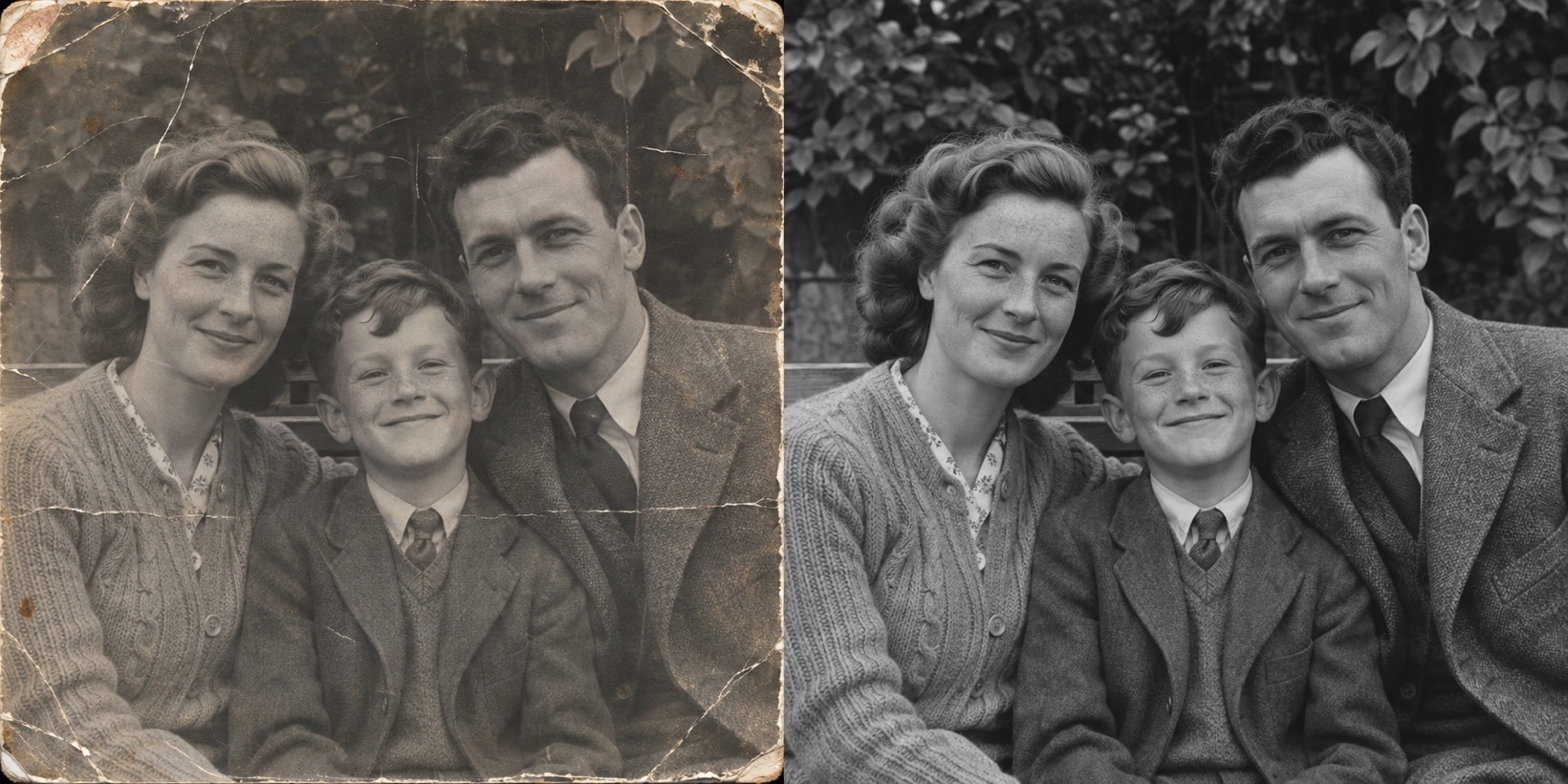
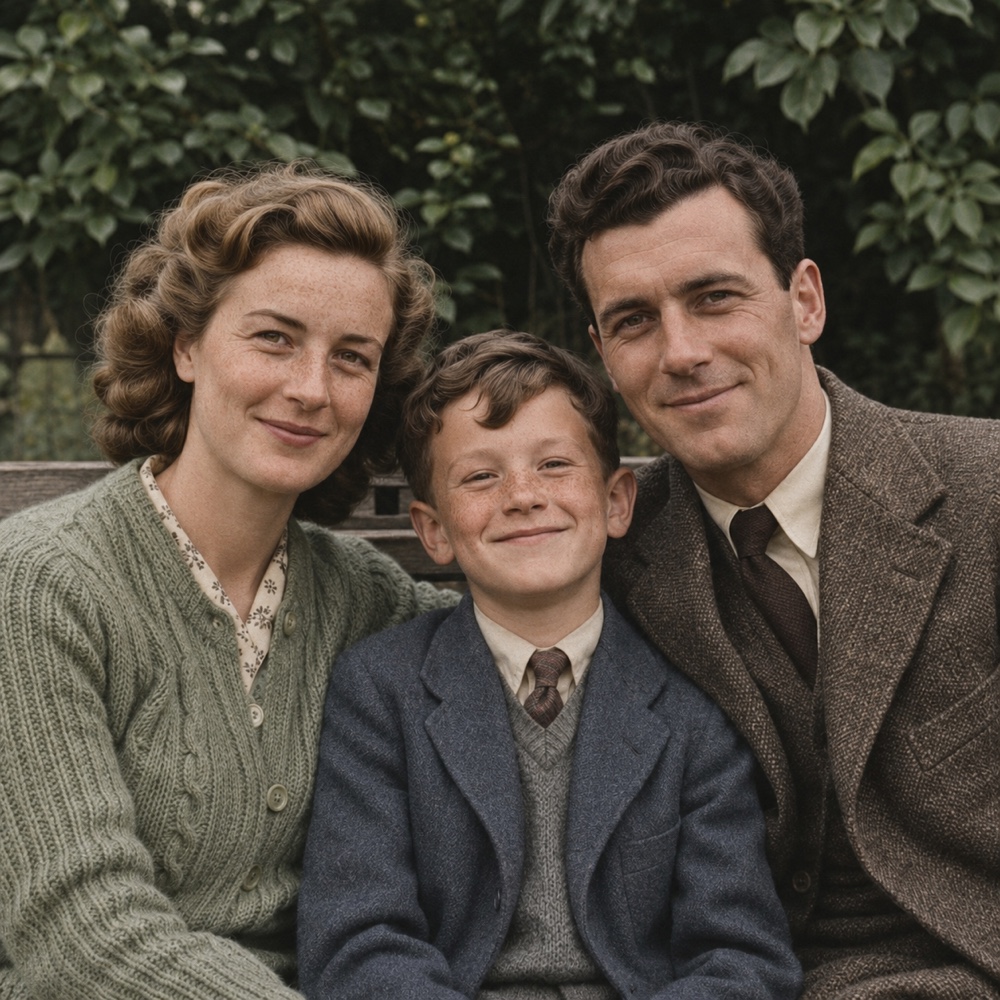
Restore and colorize a family portrait
Remove scratches and creases, restore contrast, and add natural color. Keep the faces and framing.


Restore and colorize old photos. Upload an image or try the family portrait sample to compare the original with the edit.
SMALL CHANGES. A DIFFERENT PICTURE.
Use a sample to explore the task. Your own photo is uploaded only when you click Edit my photo.
Remove scratches and creases, restore contrast, and add natural color. Keep the faces and framing.
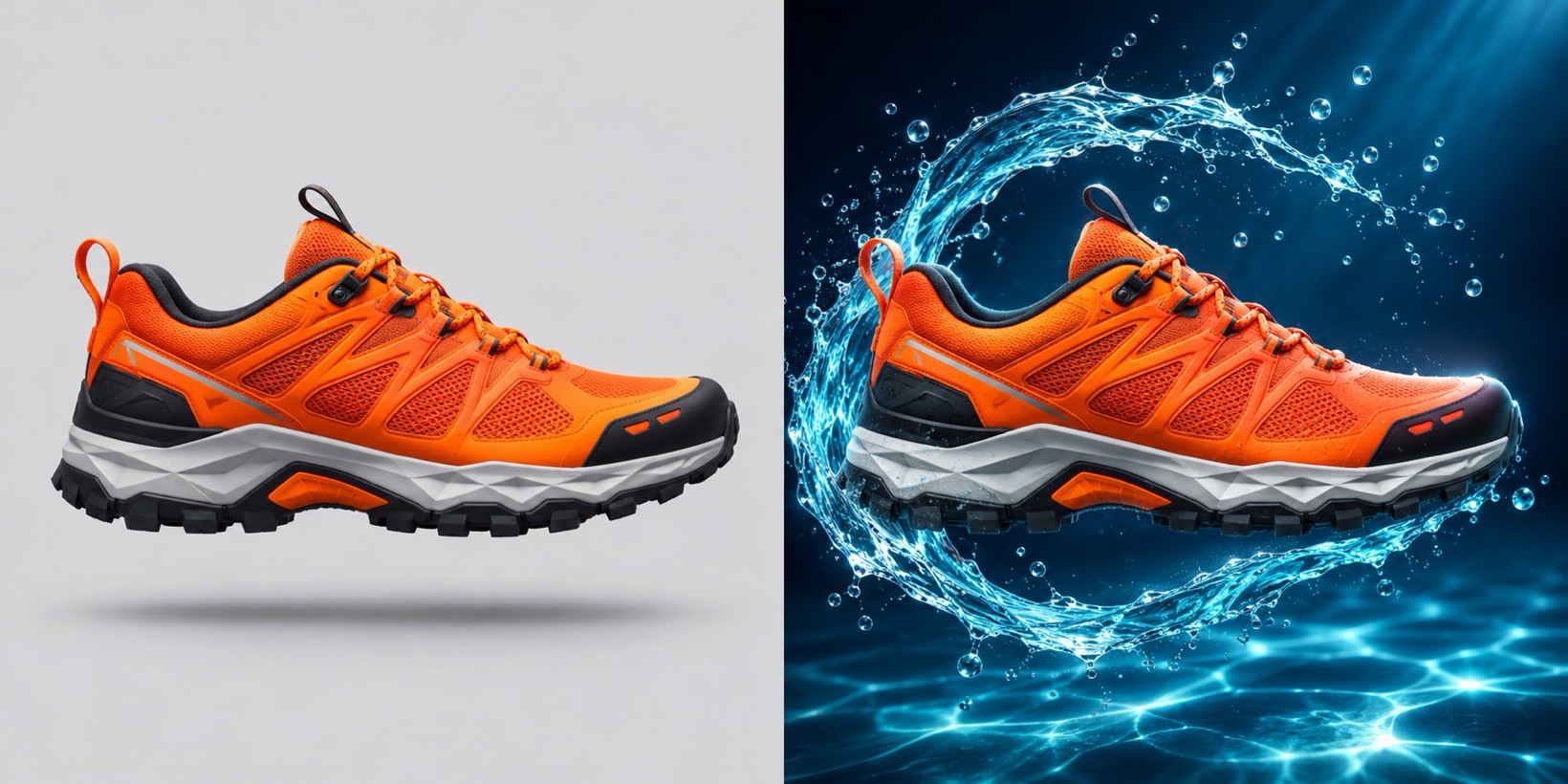
Put the orange sneaker against a cyan splash and dark blue backdrop. Keep its details.

Remove the red calla lily and its stem. Keep the perfume bottle, lighting, and framing.
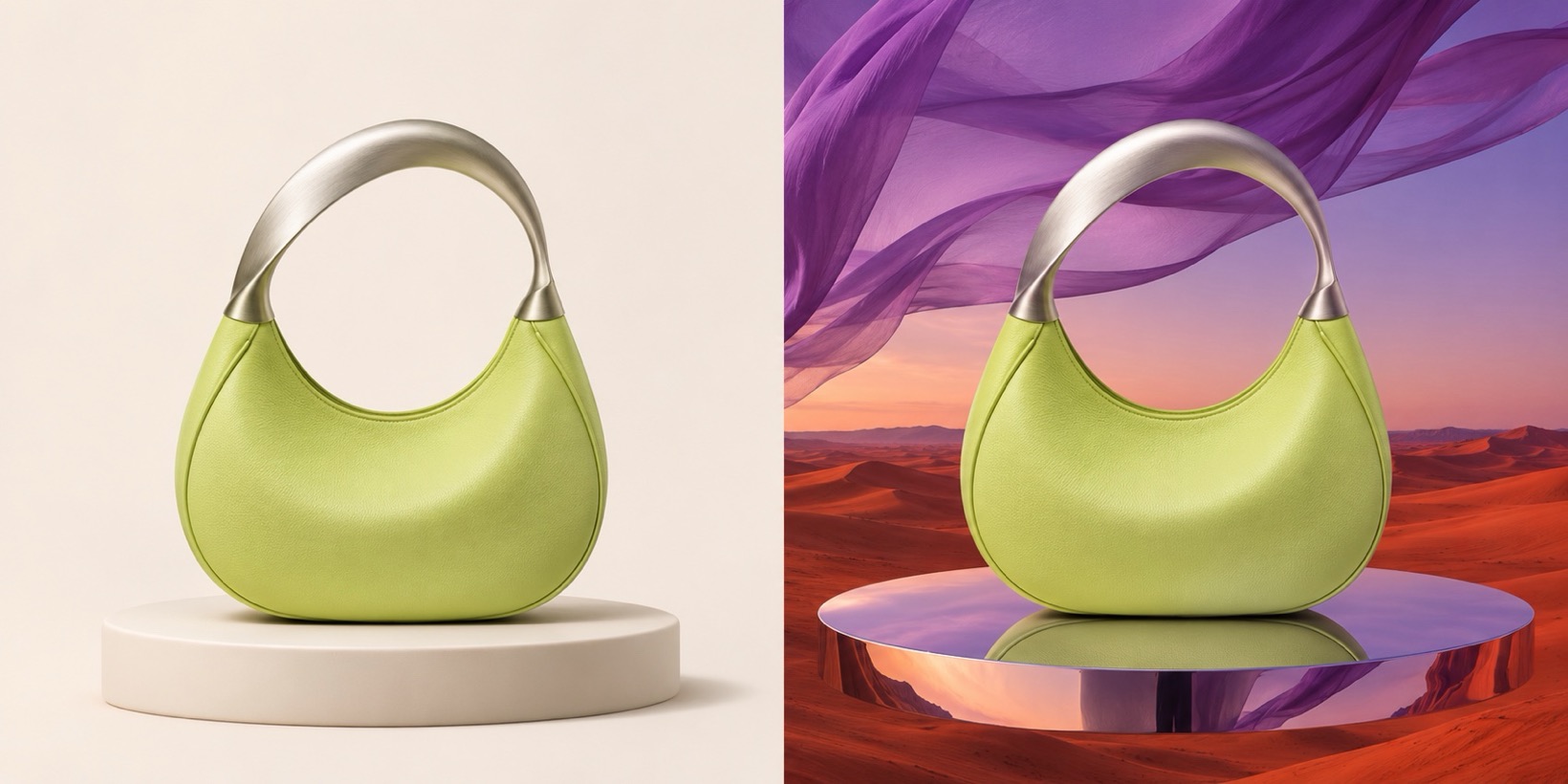
Place the lime handbag on chrome above a terracotta desert. Keep its shape, stitching, and handle.
Prepared before-and-after concepts.
SAY WHAT CHANGES. SAY WHAT STAYS.
A good edit is specific. Name the object, describe the change, and tell Orlino which details to preserve.
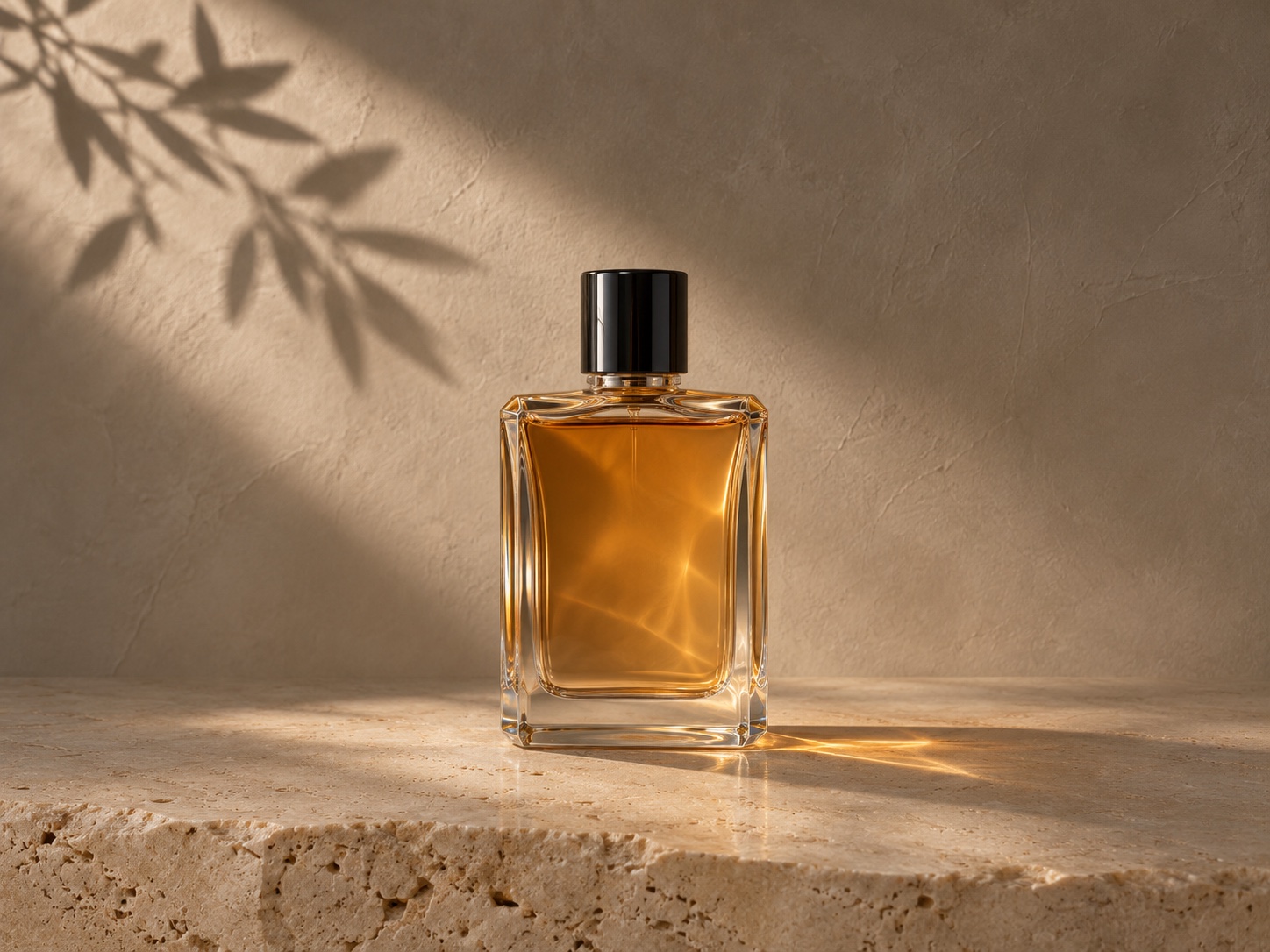
“Set the bottle on warm stone in window light. Keep its shape and black cap.”
Always review faces, fine text and product details before using an edited image.
THREE SMALL STEPS
Upload an image or try a curated sample.
Be specific about the object and the result.
Keep the original close and check the details.
A FEW THINGS WORTH KNOWING
Describe what should change and what must stay: the product silhouette, label, face, colors or lighting. Compare the result with the original.
One JPG, PNG or WebP file, up to 10 MB. Use a photo you have permission to edit.
Orlino uploads your photo and attaches it to your editing request in the web app. We keep the temporary copy used for this transfer for up to 30 minutes. Only the Orlino account that opens the request can access this copy, and only from the browser where you started.
Yes. Uploading does not replace your local file. Keep it when comparing changes or trying another direction.
Compare facial details with the original. Restoration can redraw small features. Keep your original rather than replacing it with an AI interpretation.
They are prepared concept pairs for exploring the comparison and editing flow. The four examples each use their own artwork. Uploaded photos are displayed as provided.