


Best ai presentation maker · Start with what someone else needs to edit
An AI presentation maker can produce an attractive browser draft. When the deliverable is an editable PowerPoint deck, the test goes beyond what the slides look like. The next person should be able to change the numbers, update the headline, or use the slides in a team template without rebuilding the whole presentation.
Write the expected handoff. A founder refining a pitch could need to reorder slides and change text on every slide. An analyst maintaining a monthly report could need original chart values and object-level control. A trainer could need notes, image captions, and a stable layout when colleagues use different versions of PowerPoint. Each person will pick a different tool if the expected edits differ.
Orlino describes an editable PowerPoint output from its AI Presentation Maker. Gamma advertises PowerPoint export, and its export workflow gives another candidate to inspect. Start with providers that offer the format you need, then test the actual handling of notes, charts, and typography. An export promise alone cannot show whether a particular chart lands as an editable chart or as artwork. (Gamma export formats and plan details)

Create a matched evaluation deck
Pick one topic and supply a short briefing packet. A product launch is useful because it needs a short narrative and often includes a date, a number, and a next step. Provide real values if you have permission and they are suitable for the tools. Otherwise use a clearly fictional scenario. Keep the number of slides small enough to compare in a single sitting.
Example briefing packet. The fictional team is deciding whether to run a second pilot. Provide a title slide, a bar chart with data points 12 and 18 labeled September and October, a roadmap with two milestone shapes, an image with its own caption box, and a one-sentence speaker note on the conclusion slide. Use Wide format and a neutral theme.
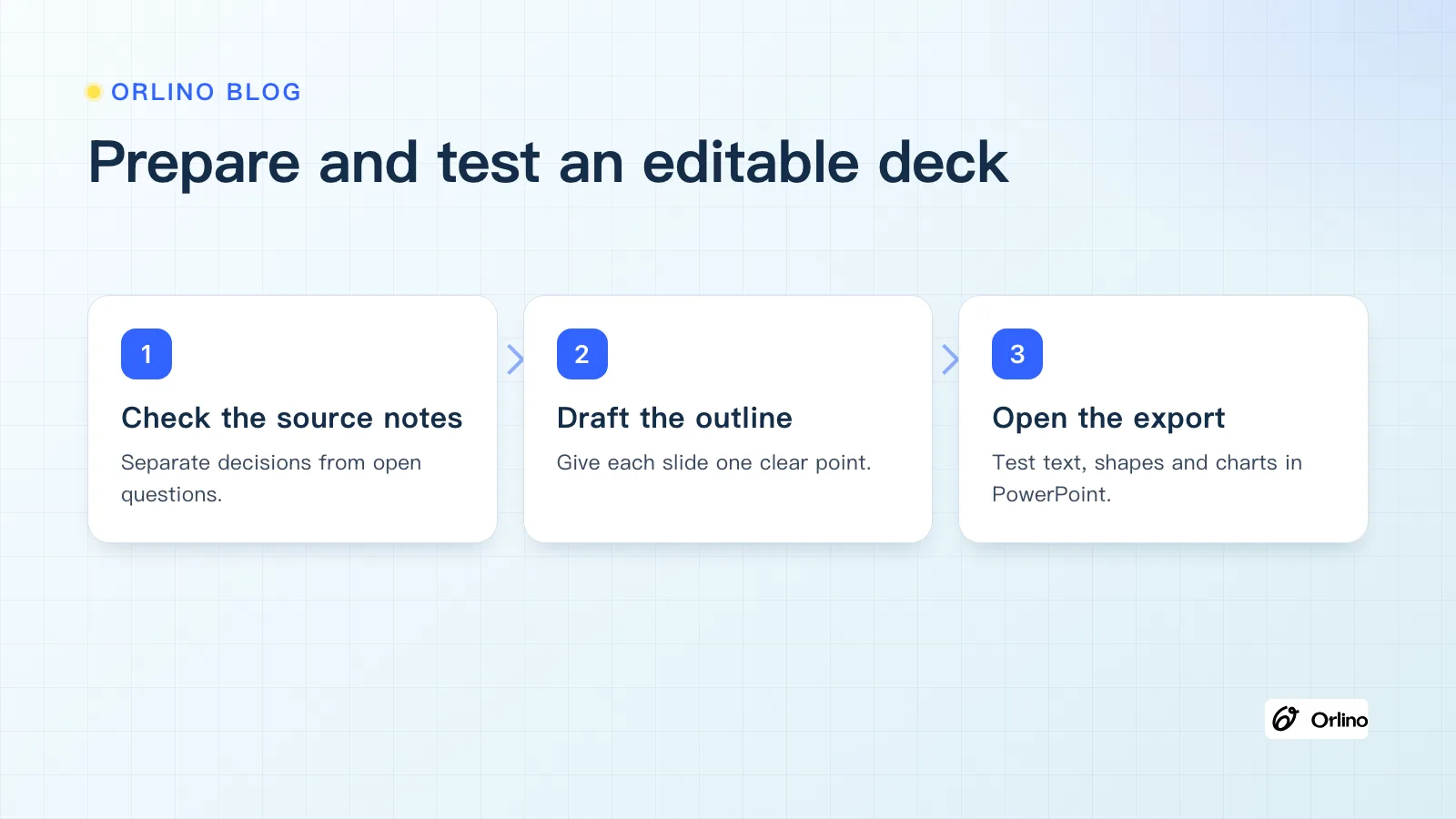
Ask each tool to create the same five slides. Save the first export. Record the version of PowerPoint you use and whether it displays any opening or repair message. If a tool uses a different presentation structure by design, record how you mapped it to a PowerPoint slide, since that difference can influence the output. If your test deck comes from a real meeting, prepare meeting notes for an editable PowerPoint draft so the comparison starts from verified decisions and figures.

Inspect the objects that matter
Start with the headline. Select the text, edit a word, and confirm it wraps predictably. Inspect grouping. If objects are grouped, can you ungroup them without breaking their positions? If you need accessible or translated slides, check that text can be selected and changed independently from the background.
Inspect the chart. A chart may be a native chart, a set of shapes, or an embedded image. Click through to see whether you can change the underlying data. Play out the likely revision. If October should move from 18 to 20, can you update the value and axis in the exported file? If not, determine how much time it would take to replace the object with a chart you can maintain.
Check images, notes, and assumptions about fonts. See whether an image can be cropped separately from its caption. Check the Notes pane for the sentence supplied in the prompt. Use the slide show view and PDF preview to spot text that clips during presentation. If a font is missing in the target environment, compare the presentation after applying your team font.
Try the team template and a real revision
Open a blank deck using the template your colleague normally uses. Paste in a representative slide and see what happens when you choose the target theme. A deck whose elements retain positions but keep their original colors may need minor cleanup. A deck whose chart and headline collide when the theme changes may take longer to adapt.
Ask for one content change using the generation tool and repeat the export. See whether the change applies to the intended slide and whether approved slides visibly drift. If a tiny correction requires rebuilding the entire file, the best role for the tool may be preparing a first draft you edit in PowerPoint afterward.
Record the minutes needed to get from downloaded file to the final template. Include the time spent checking facts, repairing wrapping, and rebuilding any charts. A small extra minute at export can be worth it if you preserve regular changes, but a repeated fifteen-minute repair on every monthly slide will affect your choice.
Match the result to the team
Pick the strongest fit for the dominant workflow. For recurring reports, give chart data and master layout more weight. For a pitch, emphasize narrative, text changes, and figure placement. For training materials, prioritize slide order, notes, captions, and readability in presentation mode.
Explain your decision in concrete terms. “We can edit the headings and charts, and the template takes under two minutes to apply” tells a colleague why the result works. “It has the best AI” does not tell anyone what behavior to expect. When both candidates require significant manual layout work, consider exporting a tighter outline and building the deck in the destination template.
Choose between the candidates using a scorecard that reflects the handoff
Consider an analyst who updates a four-slide dashboard every month. The data series is small, and the fonts and colors are fixed by a shared template. For this person, a native editable chart is the first gate. After opening the exported file, set the October value to 20 and check whether the chart changes correctly. Then undo the test value and apply the team theme to a copy. Record what you had to repair before anyone could present it.
For a founder preparing a one-time pitch, the gates may be different. The slide structure and headline wording are likely to change until the final meeting, while one chart may be pasted in from an approved source. Give more weight to editing text, shifting a diagram, and maintaining enough spacing when the title changes. An export that suits the analyst can require more work to adapt to the founder's pitch.
A compact scorecard can have five entries per candidate: opening integrity, text and shape editability, data update, notes retention, and theme compatibility. For each, note pass, manual fix, or blocker. Write what “pass” means before you export. One team will be comfortable rebuilding a simple chart. Another may need to retain the chart data as part of its standard handoff.
Document what each workflow did best
Describe the provider workflow and observed file separately. Orlino's product page lets you examine how it positions editable PowerPoint output in an idea-to-deck workflow. Gamma's export help describes moving a presentation into PowerPoint from its own editor. Those directions explain where the file comes from. Your scorecard explains whether the style, objects, and notes survived for the specific deck you reviewed. (Gamma PowerPoint export help)
Include the test date, account tier, destination app, and theme. If you used a desktop copy of PowerPoint with a particular font installed, say so. A recipient without the font can see a different wrap or line height. Check the actual sharing environment if the slide feels fragile or contains tight columns.
Write a verdict specific enough that a colleague can reuse it. For example, choose the candidate that preserved the headline and chart and needed only a theme color correction for the monthly report. Record the other candidate's stronger first-pass layouts if those would help with a draft pitch. Keeping the reason ties the choice to the job instead of producing a ranking nobody can repeat. If cost is part of the decision, compare presentation makers by limits and export options before asking every candidate to make the full deck.
Check accessibility on one representative slide
Select a slide with a chart, a short headline, and an image. Confirm that the headline is selectable and that the chart has a clear text description or caption. Ask a teammate to open the slide using their normal workflow and tell you the main point. If the chart only encodes differences by color, add labels in the destination editor. Track that repair as part of the export review. It is easier to spot a recurring accessibility problem on one strong test slide than after generating a full deck.
Frequently asked questions
Is PowerPoint export enough to make a deck editable?
The file format can contain many kinds of content. Inspect specific slide objects and check whether your team can update them.
Should I compare exports in different apps?
Start with the destination app. Add a browser or other office suite test only if collaborators routinely use it and need the same rendering.
What should I do if a graph is flattened?
Rebuild it as an editable chart from confirmed data, or pick a tool and template combination that preserves a native chart in the export.
Keep reading
AI Presentation Makers by Slide Limit and Export
Compare AI presentation makers by slide limits, generation credits, and whether downloaded PowerPoint files stay editable.
Read article AI Presentation MakerUse AI to Turn Meeting Notes Into an Editable PowerPoint
Ai powerpoint generator · Turn meeting notes into an editable PowerPoint deck with an outline, source checks, and a quick test of the exported slide objects.
Read article