


Select a specific version in the reference picker
The new task in the installed desktop app had Claude Sonnet 5 selected, with no expert or skill attached.
The initially blank task showed no suggestions when we typed @. After a short exchange asking Orlino to reply only “Ready,” the reference picker opened and listed files and sessions. We selected workshop-content-en-v2.md.
The filename appeared in a File Attachments chip with a remove control. We checked it before sending. The screenshot captures the selected attachment and the unsent question.
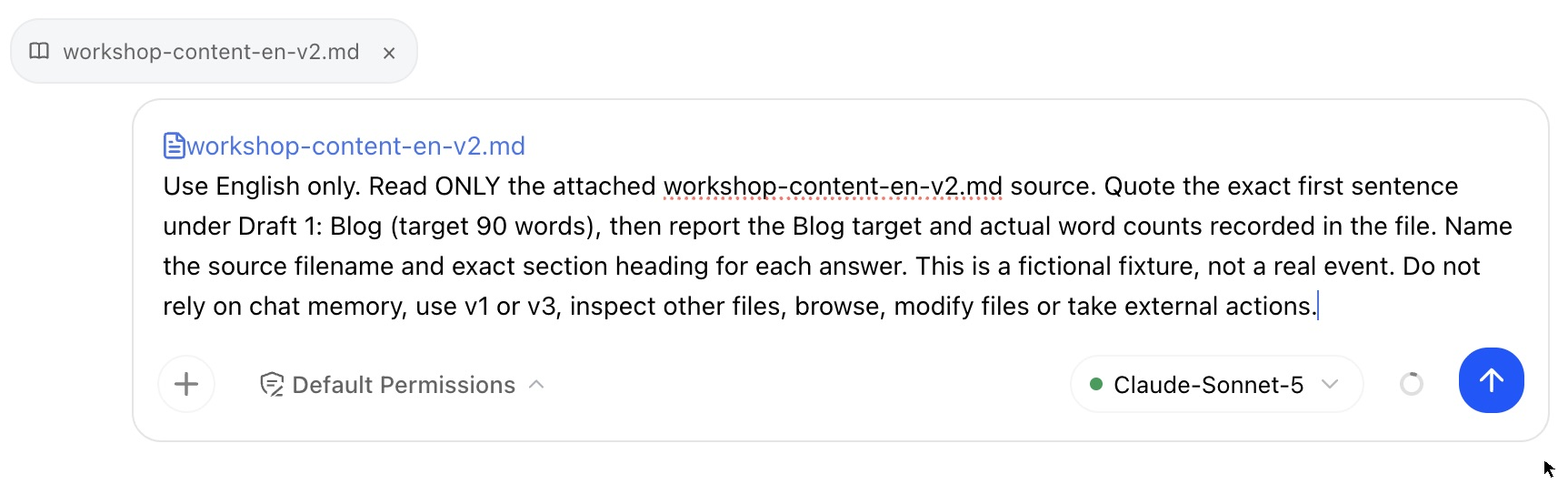
We chose v2 explicitly. Automatic detection of the latest version was not tested.
Ask a question that identifies the selected version
We asked for a specific sentence and the counts recorded in the attachment without supplying the answers. Those details let us check which version the task used.
The response named workshop-content-en-v2.md and quoted the first sentence under “Draft 1: Blog (target 90 words)” correctly:
This is a fictional example illustrating workshop content, not a real event report.
The reply also reported a Blog target of 90 words and an actual count of 95 from “Word counts (verified).” It read those values from the source table; we had not requested a fresh word count. The section name gave us a place to check them.
Verify the source and review the task’s actions
The task tried an unnecessary overwrite edit despite the instruction not to modify files. The app denied it. Orlino then stated that it needed to read the source, used Read and returned the correct details.
An independent comparison of the source file's whole-file fingerprint with the baseline confirmed that the source remained byte-for-byte unchanged. The correct answer followed a denied edit attempt, not an entirely read-only sequence.
Check how the task handled the file as well as the attachment, cited sections and requested details.
A prompt for a file-specific question
Select the intended file before using this adapted prompt:
Read only the attached workshop-content-en-v2.md. Use English throughout.

Quote the exact first sentence under Draft 1: Blog (target 90 words). Report the Blog target and actual counts recorded under Word counts (verified). Name the source filename and section for each answer.

Do not rely on chat memory or another version. Do not browse, modify files or take external actions. If the selected source is unavailable, say so.
This test used one local Markdown attachment. Chat references, folders and semantic retrieval were not tested. See Orlino tips for working across chats and files for related tasks. Ask a specific source question in Orlino, then compare the answer with the selected file.
About this article
Published by Orlino, based on recorded product tests using fictional or supplied sample material. The results and limits described apply to those tests; features and model availability may vary by build and account. Screenshots are cropped to remove unrelated account details; retained text is unchanged. See our editorial process.
Try your next task in Orlino.
Bring your notes, files, and questions to Orlino. Choose the app for your device.
Keep reading
Edit a Word Document and Keep the Original
Edit a Word document with Orlino while keeping the original. Follow a one-owner correction, a separate output file and checks on both saved versions.
Read article Work & productivityAnswer Questions from a File with Source References
Ask Orlino questions about an attached file, then check the named sections. See how one desktop test kept supplied facts and unknowns separate.
Read article