


Specify one edit and a new filename
Name the section and quote the old and replacement sentences, then request a separate filename. If the same person appears elsewhere, say which occurrence should change and which should stay.
The starting file in this test was a fictional weekly report. Alex had finished the registration form. Sam had tested 12 sign-ups and found 2 duplicate entries. Pat had drafted the agenda, and venue confirmation was waiting for a quote. The Next Week section assigned Alex to review the duplicates.
The follow-up in Orlino's desktop app changed that future assignment to Sam. It explicitly kept Alex's completed registration work, all other facts and the original file. A request to replace every occurrence of Alex would have changed a correct statement elsewhere in the report.
Only that sentence in Next Week was to change, with the result saved as weekly-report-en-v2.docx.
Compare the original and revised text
Orlino returned the new file and described the owner change in its response. We then compared the actual original and revised Word documents independently.
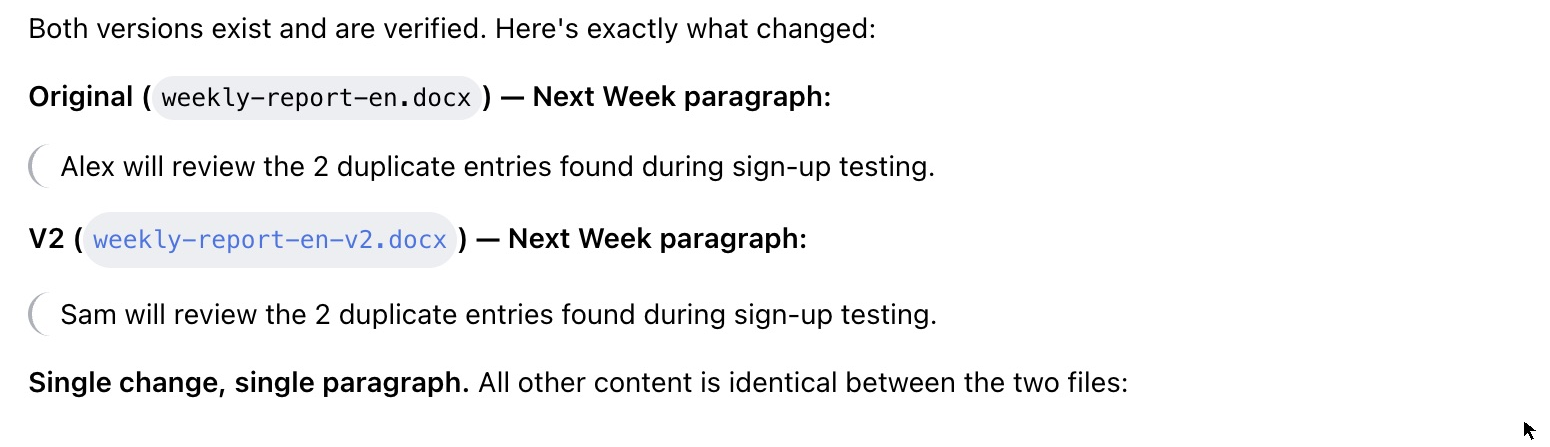
Both contained 15 paragraphs, including spacing paragraphs. Only paragraph 12 differed:
- Original: “Alex will review the 2 duplicate entries found during sign-up testing.”
- Revised: “Sam will review the 2 duplicate entries found during sign-up testing.”
Every other paragraph matched. Alex still appeared in the completed registration item. The counts, Pat's agenda update and the venue blocker remained in place.
The original file's whole-file fingerprint matched a copy kept before the edit. That separate comparison confirmed preservation; the revised file's contents alone could not.
Put the idea to work.
Try the workflow with your own material in Orlino.
Save a new version and check its page
We kept weekly-report-en.docx as the starting point and requested the owner correction in weekly-report-en-v2.docx. We explicitly asked for a separate file. Automatic version history was not tested.
We opened the revised document in the app's file viewer. Its layout display was labeled approximate, so we also rendered the actual export separately. The revised report fitted on one readable page, with no visible clipping.
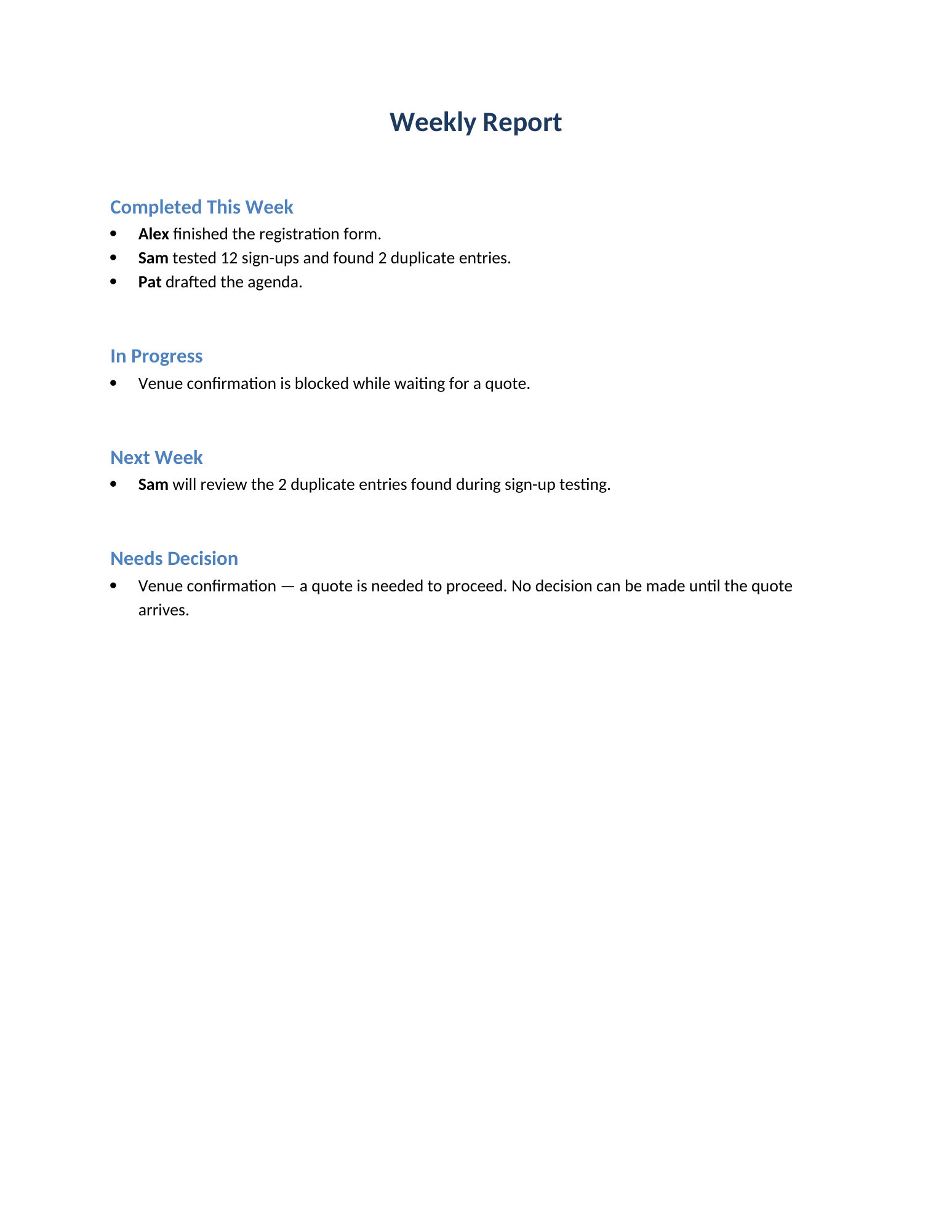
Compare the text for the requested owner change and unrelated edits, then inspect the page for readability. Those checks do not establish that every formatting property is identical.
A prompt for a precise follow-up
The prompt below is adapted for reuse and is not a verbatim transcript of the test.
Use weekly-report-en.docx as the source. In the Next Week section only, change:

Alex will review the 2 duplicate entries found during sign-up testing.

to:

Sam will review the 2 duplicate entries found during sign-up testing.

Keep Alex's completed registration work unchanged. Preserve every other paragraph, name, count and status. Do not rewrite or polish unrelated content.

Save a new file named weekly-report-en-v2.docx. Leave the original file unchanged. Use English throughout. Report the exact text you changed and any checks you could not perform.
Check the surrounding facts
Before accepting a narrow edit, check both the change and its boundaries:
- Open the revised file and confirm its filename.
- Confirm the intended sentence changed.
- Check other occurrences of the same name.
- Compare surrounding facts and the exported page.
- Confirm the original file is still available and unchanged.
The rest of the report still needs a factual review, even when the owner edit is correct.
The AI long-document report-writing guide covers longer source-based drafts; these Orlino tips cover chats and files. For an edit in Orlino, specify the sentence to change and the new filename.
About this article
Published by Orlino, based on recorded product tests using fictional or supplied sample material. The results and limits described apply to those tests; features and model availability may vary by build and account. Screenshots are cropped to remove unrelated account details; retained text is unchanged. See our editorial process.
Try your next task in Orlino.
Bring your notes, files, and questions to Orlino. Choose the app for your device.