


Ai chat · Compare the starter experience you will actually use
A AI chat tool can be enough for a quick explanation or a short writing task. It can also interrupt a meeting-prep session when you need a few more questions or a second file upload. A useful comparison looks at how access works for your task, including what happens when you hit a limit. An exact message count is often less useful than knowing which capabilities remain available.
OpenAI's ChatGPT usage FAQ describes limits and notes that some tools have their own rate limits. If you mostly chat in plain text, look at how the conversation proceeds once a more capable option becomes unavailable. If you use files or images, check those features separately. An offer can have enough text capacity for a rewrite while limiting the attachments you planned to review. (OpenAI ChatGPT usage FAQ)
Anthropic lists a entry-level Claude plan and describes email sign-up for access in supported locations. OpenAI documents logged-out ChatGPT access in supported locations, with sign-in needed to keep a chat. Eligibility can depend on location or network. Compare the documentation with the access you see. Use Orlino AI Chat as a starting point for the actual sign-in and first-task flow. Do not assume an account you have used before behaves like a new account or that access on a work account matches personal use. (Anthropic Claude pricing) (OpenAI Help on logged-out ChatGPT access) (Anthropic Help on signing up for Claude)

Note where sign-in begins
Open the product with a personal test profile if you need to understand the experience for a new user. Record whether it offers a usable chat before sign-in and what changes once you sign in. A tool can let you open its public interface without an account and still require registration before it can generate a reply or save a conversation.
If there is a sign-in step, look at what it unlocks. A saved conversation can be convenient for ongoing editing. A history feature can also leave material visible on a shared device. Check the account and device you intend to use. For a reader choosing a tool to try before paying for a one-time question, the benefit of saved history may be small. For recurring work, being able to return to exactly the same conversation may matter a great deal.
Avoid using a sensitive prompt to test access. Choose something you can safely share, like improving a workshop announcement or planning a fictitious weekend. If you need to understand export or portability, copy a response into a document and see whether headings, lists, or links survive. That tells you more about handoff than seeing an attractive response in the browser. If you are deciding which capabilities to test, see what an AI chatbot can do and choose one realistic task from the examples.
Measure the session instead of chasing a daily number
Set up a short workload that resembles your use. One session could include an initial question, two follow-ups, a formatting request, and a final check. Another could be a file-based session with a small sample document and several questions about it. Use the same steps on each account. Note prompt lengths and whether a tool performed a search or read an attachment.
When you see a limit, write down the message and your time zone. Record which capability was affected and whether another mode remained available. Some limits reset periodically, while others may depend on the plan, feature, recent use, or current conditions. One observation is useful for planning your work this week. Avoid presenting it as a permanent daily cap.
Example session. Paste a five-sentence event draft. Ask for a concise version, a friendlier version, a three-point organizer checklist, and a final draft using only the confirmed details. Save each response and mark where you would have stopped if this were real work.
This task makes the comparison practical. The best outcome is a final draft you can use. If you need four turns and the tool gives a useful result in two, you have capacity left for another job. If it takes repeated attempts to preserve the same facts, a nominally generous cap can feel restrictive.

Check the feature limits separately
Start with plain text. Ask a simple question and try a follow-up that refers to the previous answer. Then test one feature you rely on, such as summarizing a report or inspecting an image. If you intend to use search, ask for source links on a current question. Confirm the links in a separate tab and check whether the capability is still available after repeated use.
Rate the experience on continuity and recovery. If you run out of one capability, can you finish with text? Can you return after the reset without losing the context? Can you move the essential information into another conversation without sharing unnecessary details? These questions help you decide whether a entry-level plan fits casual use, recurring work, or both.
For a long conversation, save the current state before it becomes hard to reconstruct. Keep your most recent approved draft, the critical constraints, and the open question in a short handoff note. If you reach a cap, you can continue later without asking a new tool to recreate every turn.
Match the tool to the kind of session
For a quick answer, choose a service that opens easily and provides the output you need with minimal setup. For a writing session, prioritize follow-up quality and access to the last good result. For file review, find out how uploads are counted and whether the entry-level plan can inspect the type of file you use. Your choice may differ for each of those tasks.
When comparing availability for a group, have people record the account type and whether they were signed in. Include the date and country when documenting a change. An eligibility or rollout difference can make two screenshots look contradictory. Record both observations and check official help before assuming one person is mistaken.
A useful conclusion can be small. “This one handles a short rewrite without interruption on our starter account. For recurring file review, the upload limit needs another test.” This is easier to act on than an absolute ranking, and it tells the next reader what to verify.
Read a small comparison without confusing the results
Imagine three people evaluating a chat tool for a neighborhood newsletter. One asks a short question and sees no interruption. Another pastes the newsletter and requests eight revisions. A third uploads three photos and wants captions. The different outcomes can all be accurate. The comparison should explain the tasks and the types of access each person used.
Make a short entry for each session. The entry could read, “Signed in with the personal account before upgrading. Completed the draft and three text revisions. The photo upload function was available at the start, but a second image request displayed a limit.” That wording tells the next tester what to repeat. It also avoids turning one limit message into a universal claim about the service.
Check how easy it is to export useful material after the task. Copy a sample answer with a heading, two bullets, and a link into the editor where your final work lives. If the formatting breaks, record the time to fix it. A subscriber might care about extra features, while your immediate workload may depend on moving a simple draft into email without cleanup.
Finally, decide what counts as enough. For a newsletter draft, a completed response and two clean refinements might be plenty. For reviewing several documents, a limit after the first upload can be decisive. Keeping separate thresholds for the two cases can lead to different tool choices without forcing an artificial overall winner. Recheck a capability if you moved from a browser into a mobile app, switched accounts, or returned after a plan update. Report the exact circumstances when results differ. To keep the workload comparable across services, write a clear AI question with a defined outcome and use that same short brief in every tool.
Compare recovery after a limit
One useful last test is to pause the session at the most awkward point. Stop after the first usable draft and before the final fact check. Copy the draft into a clean document, write the remaining question, and see whether you can resume from those two items alone. If you move to a different chat service, avoid copying old mistakes or irrelevant conversation. Ask the new tool to verify only the outstanding detail against the material you provide. The exercise shows whether your workflow depends on uninterrupted access.
Frequently asked questions
Which AI chat has unlimited messages?
Look for the provider's current terms and check which mode they describe. Text, attachments, and more capable modes may follow different thresholds.
Does AI chat always require a login?
Check the site's current guest flow and try one simple prompt. Guest availability and access to features or history can vary.
What should I do when I hit a limit halfway through a task?
Save the approved output and open questions. Use another available mode if it meets the task requirements, or resume after the reset shown in the product.
Keep reading
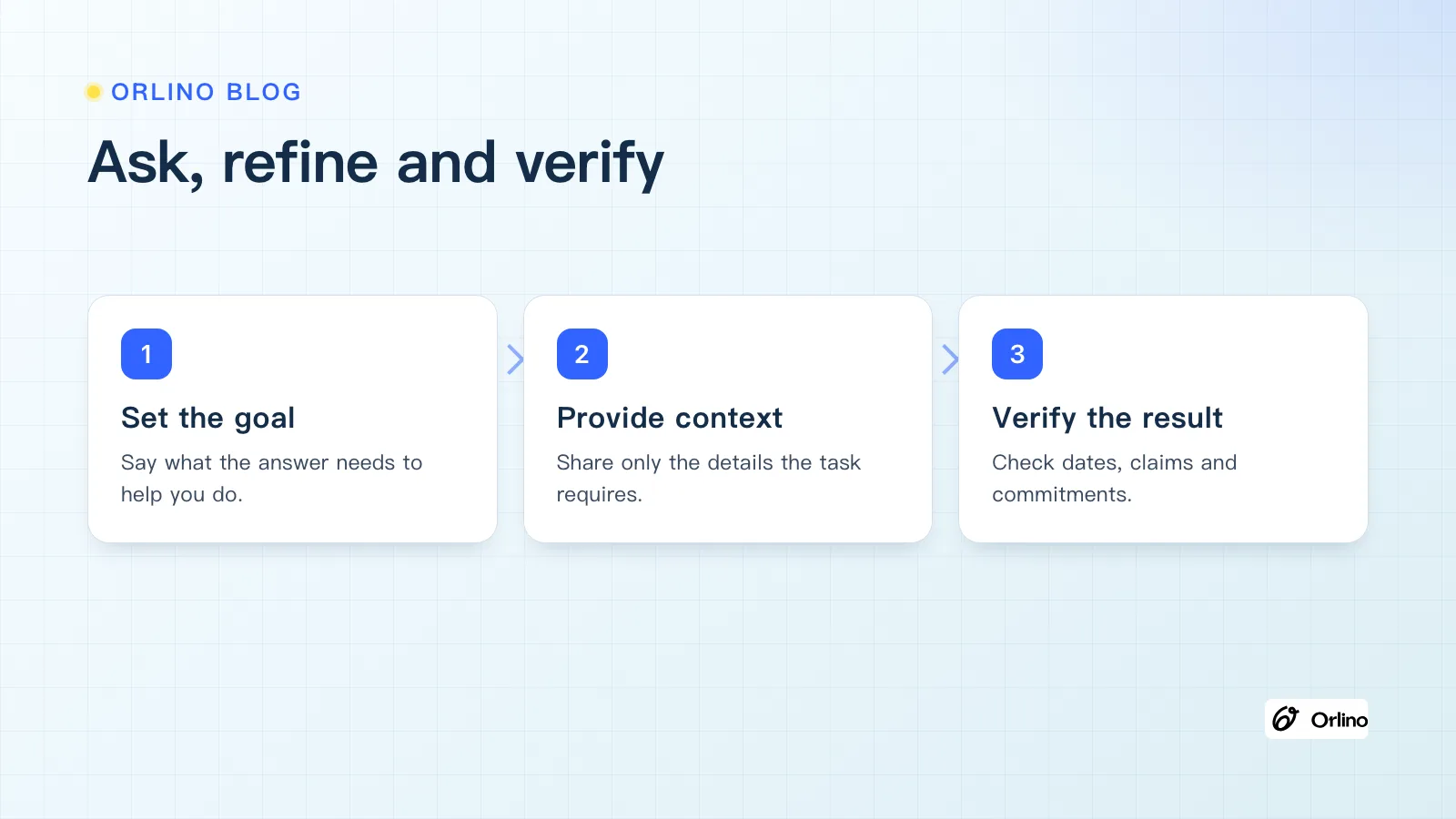
How to Ask AI Better Questions and Check Its Answers
Ask AI better questions using a clear goal, relevant context, options, and a follow-up that checks assumptions before you make a decision.
Read article AI ChatWhat Is an AI Chatbot? Everyday Uses and Examples
Learn what an AI chatbot does, how it differs from a scripted bot, and when to use one for explanations, drafting, and everyday planning.
Read article