


Select the model in the desktop composer
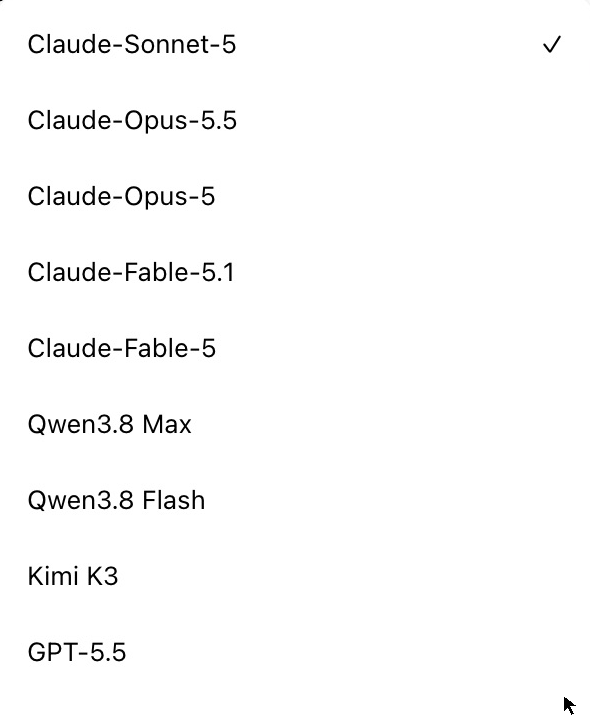
Open the model dropdown in the desktop composer and choose an entry before sending the task. In our fresh conversation, we clicked Claude-Sonnet-5 and checked its label in the composer. That label was still visible after the response.
Keep the selected label with the prompt and returned answer, especially when moving between conversations. If you retry with another model, record it as a separate run.
The screenshot is a fresh capture of the upper menu, with Claude-Sonnet-5 checked. Other choices continue below the crop. Their presence in the menu doesn't tell us whether they'll complete a task.
Verify the selected model with a known-answer task
We asked for actual spending minus planned spending on four fictional studio-budget rows, with no invented causes or owners. We could calculate each expected amount ourselves:
| Item | Planned, USD | Actual, USD | Actual minus plan, USD |
|---|---|---|---|
| Venue | 950 | 1,050 | +100 |
| Catering | 600 | 540 | −60 |
| Equipment | 300 | 420 | +120 |
| Print materials | 100 | 70 | −30 |
| Total | 1,950 | 2,080 | +130 |
The response matched every row. We checked the subtractions and both column totals; the net result was 130 USD over plan.
This short arithmetic request gives no evidence about how the selected model would handle a long document, outside research or another task.
Put the idea to work.
Try the workflow with your own material in Orlino.
Revise formatting without changing verified figures
Dollar signs in the final sentence made part of it display as mathematical notation. The figures were correct, but that sentence was difficult to read.
We asked for USD notation with no dollar-sign characters or math markup, keeping the table and result unchanged. The revised response retained every line and total. Its final sentence read clearly: 1,950 USD planned, 2,080 USD actual and 130 USD over plan.
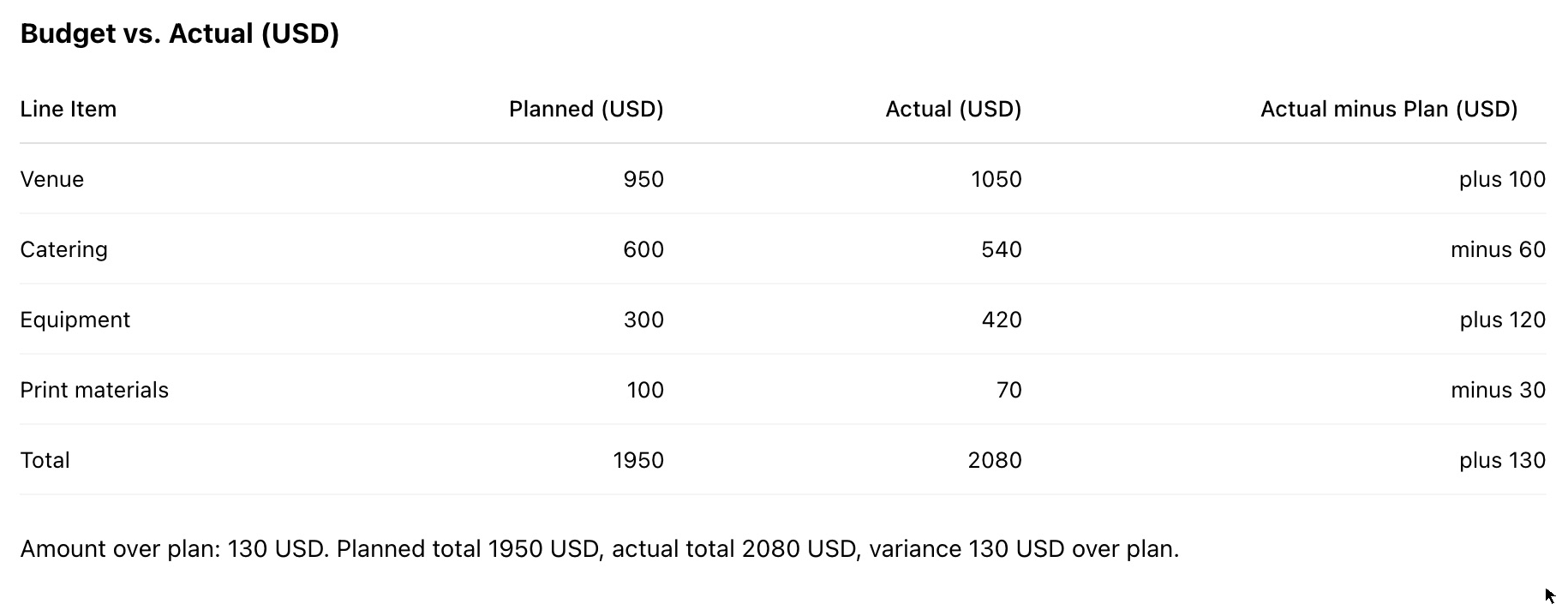
For a formatting fix, name the passage to change and say which figures should stay. Here, the follow-up changed presentation; the arithmetic was already correct.
Keep a failed attempt in the record
An earlier, separate Data Analysis skill task had explicitly selected GPT-5.5 and timed out after 60 seconds without producing output. A later retry using Deepseek completed a correct table, although its accompanying prose also needed correction.
Those were separate attempts under different circumstances, not a controlled comparison. We didn't establish the cause of the timeout, rank the models or verify automatic fallback.
For a failed task, record the selected model, prompt, error and any output. Check the content of a retry even when its status says it succeeded.
A prompt for checking a selected model
Confirm the composer selection, then adapt this prompt with your own fictional figures:
Use English throughout. For these budget lines, show planned amount, actual amount, and actual minus plan: [items and figures]. Use USD notation without math markup. Include column totals and state the net amount over or under plan. Use only the supplied figures. Do not invent causes, owners, or missing information.
Compare each returned row with the input, recalculate the totals and read the final sentence. Save the chosen model and any corrections with the test notes.
How to Choose an AI Model for Your Task explains a manual comparison using the same task. For keeping prompts and results together, see these Orlino tips. Record the selection before sending your next task in Orlino.
About this article
Published by Orlino, based on recorded product tests using fictional or supplied sample material. The results and limits described apply to those tests; features and model availability may vary by build and account. Screenshots are cropped to remove unrelated account details; retained text is unchanged. See our editorial process.
Try your next task in Orlino.
Bring your notes, files, and questions to Orlino. Choose the app for your device.