


Does an item need review when its stock equals the threshold? Decide that before asking AI to write an inventory status report. A small wording change, from “below” to “at or below,” changes which rows receive a flag.
Orlino's Report Generation skill can turn supplied counts and a specified review rule into a Word draft. In two fictional tests in the installed desktop app, build 0.0.4, on October 20, 2026, it produced one-page DOCX reports with stock tables and matching charts. We checked the original files, rendered both separately and inspected every page.
Write the comparison rule explicitly
Our rule was: flag YES only when stock is strictly less than the supplied review threshold. Equal values receive NO. A zero count against a zero threshold also receives NO. This was a rule for identifying rows to review; it did not determine whether to purchase anything.
Item | Stock | Review threshold | Expected flag |
|---|---|---|---|
Notebooks | 24 | 10 | NO |
Markers | 8 | 10 | YES |
Folders | 0 | 0 | NO |
Markers was the only flagged item in this case. Folders still appeared in both the table and the chart, with zero shown for each series. We did not ask for a combined stock total because notebooks, markers and folders are different items.
Ask for a report you can inspect
Select Report Generation from Skills and supply the item names, counts and thresholds together. Specify the output format and page limit. We requested a one-page editable Word document, a grouped bar chart comparing Stock with Review threshold, and the same chart saved separately as a PNG.
The generated DOCX contained an editable table and text. Its embedded chart was an image, so changing a table cell would not recalculate that chart. If a count changes, ask for a revised report and check the chart again.
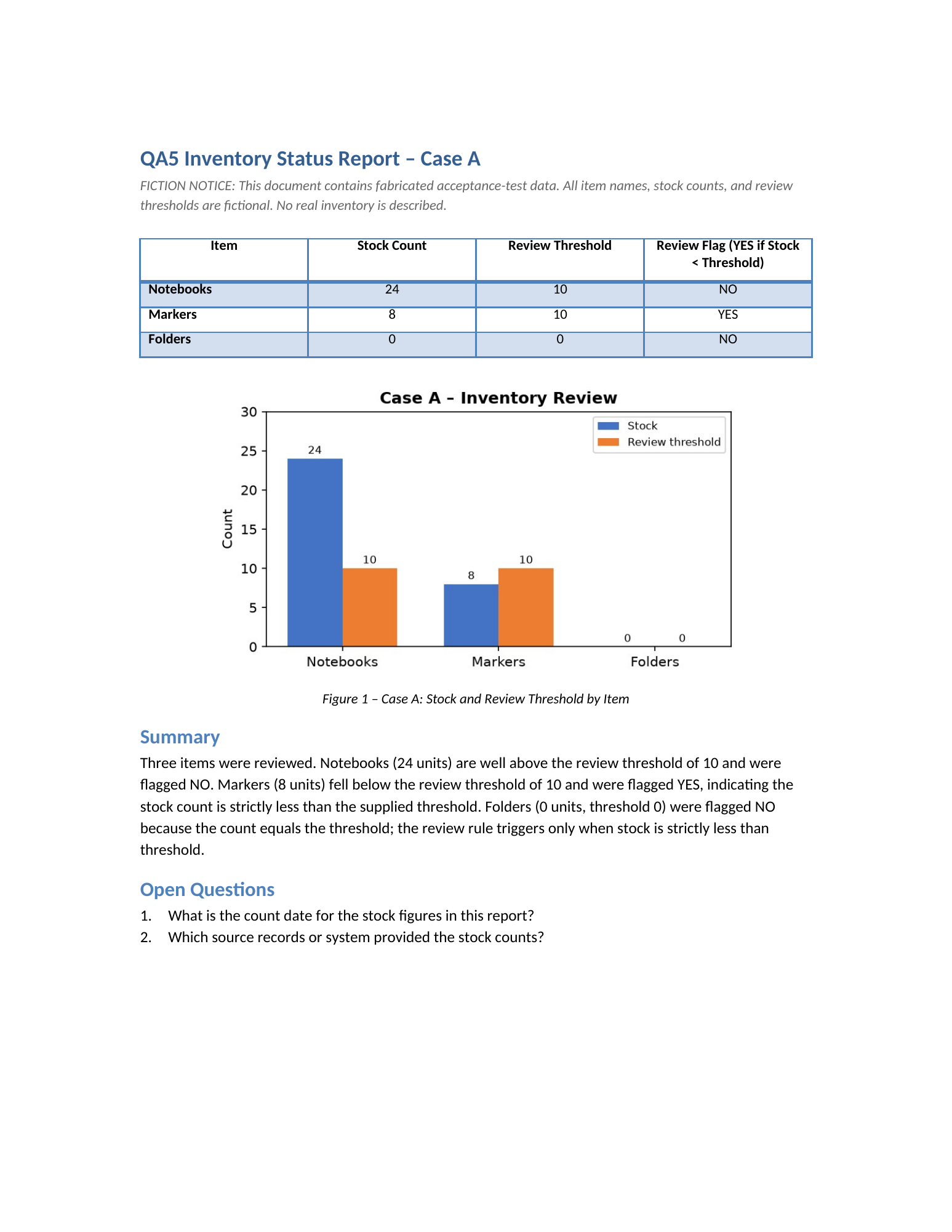
We compared each embedded image with its separate PNG file; they matched byte for byte. Both Word reports rendered as one readable page, with no overlapping text or clipped table entries in the inspected output.
Use equality as a second test
Item | Stock | Review threshold | Expected flag |
|---|---|---|---|
Chairs | 12 | 12 | NO |
Tables | 2 | 4 | YES |
Screens | 1 | 0 | NO |
The second report flagged only Tables. Chairs tested the equality boundary, while Screens checked a positive count against a zero threshold. Its table and chart preserved all six supplied numbers.
Neither test supplied a count date or a source system. The reports asked for that information in open questions. They did not invent a date, assign an owner, explain why a count was low or recommend a reorder quantity. For a real report, add the count date and source records yourself before circulation.
A prompt to adapt
Use the rule your team has approved. The strict comparison below reproduces this example; it is not a recommended inventory policy.
Use Report Generation to create a one-page editable Word inventory status report.
Items: [item, stock count, review threshold].
Flag YES only when stock is strictly less than the threshold; otherwise NO.
Keep zero values. Include the exact table and a grouped bar chart with both series.
Save the chart separately as a PNG and embed the matching image in the DOCX.
Use only supplied facts. Ask about missing count date and source records.
Do not invent causes, owners or purchasing recommendations.
Use English throughout. Distinguish file checks from any rendering you actually performed.
Before sharing, compare every row with the source, confirm how equality works, check zero labels and inspect the exported page. This walkthrough tested small, supplied tables. Live stock updates, warehouse connections and automated purchasing were outside its scope.
Try Orlino with a few fictional inventory rows and a review rule you can verify by hand.
Product information and editorial note
This article describes the bounded workflow and examples shown above. It is not an independent benchmark or a guarantee that other inputs, models, or app versions will behave the same way. Check the app for current model availability and usage limits.
Published by Orlino Editorial. Read our editorial process.
Try your next task in Orlino.
Bring your notes, files, and questions to Orlino. Choose the app for your device.
Keep reading
Write a developer event FAQ from confirmed details
Draft a developer event FAQ in Orlino from confirmed details. Keep invite-only access and undecided recording plans accurate, then review before sharing.
Read article Work & productivityClassify search terms with explicit matching rules
Classify search terms in Orlino with explicit matching rules. Check priority, empty queries and literal substrings before using the labels.
Read article